The thread that needs you is already there
Glance up and the conversation that matters is on the lens. Your phone stays in your pocket.

Read WhatsApp, Telegram, Slack, email and more on Even Realities G2 without taking your phone out. Reply by voice with Chesly Plus.
Reading is free. Chesly on your phone does the pairing.
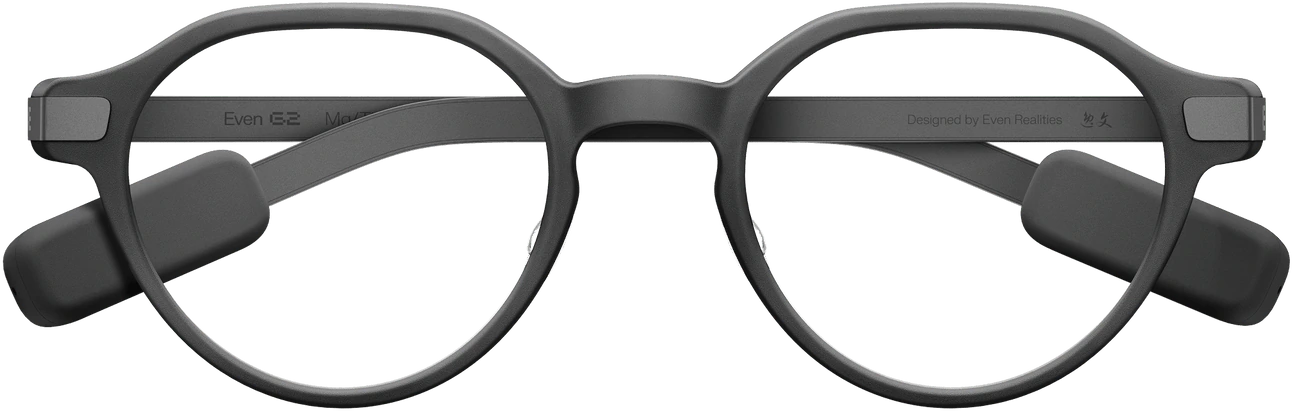
Glance up and the conversation that matters is on the lens. Your phone stays in your pocket.
Open a chat, tap Reply and speak. Chesly transcribes it and sends.

Open the Even Hub store on the phone that runs your G2 and install Chesly.
Get it on Even HubLaunch Chesly from the G2. The first screen asks you to connect the phone app.
Choose Connect with Chesly on the glasses, then approve the request in the Chesly app. You can also sign in with your 12-word recovery phrase.
For reading, scrolling and replying on the glasses, see Using Chesly on G2.
Yes. Install Chesly on the phone that runs Even Hub, connect your accounts there, then pair your glasses. After that your phone stays in your pocket. It just has to be nearby.
Yes, with Chesly Plus. Open a chat or an email, tap Reply and speak. Chesly turns your voice into text and sends it. Reading on the glasses is free, with no limits.
The ones you connected in Chesly: WhatsApp, Telegram, Signal, Slack, Discord, Instagram, Messenger, Gmail, Outlook and the rest. There’s nothing extra to set up for the glasses.
Update Chesly in the Even Hub store, then start again from the glasses. Still stuck? Sign in with your recovery phrase instead: copy the 12 words from Chesly (Settings, then Recovery phrase) and paste them on the glasses.